Priručnik Trust Slimline Tablet s olovkom

Trebate priručnik za svoj Trust Slimline Tablet s olovkom? U nastavku možete pogledati i besplatno preuzeti PDF priručnik na hrvatskom jeziku. Ovaj proizvod trenutno ima 0 često postavljanih pitanja, 0 komentara i ima 1 glas s ​​prosječnom ocjenom proizvoda 100/100. Ako ovo nije priručnik koji želite, kontaktirajte nas.

Vaš je proizvod neispravan i priručnik ne nudi rješenja? Otvorite Repair Café za besplatne usluge popravka.

Priručnik

Loading…
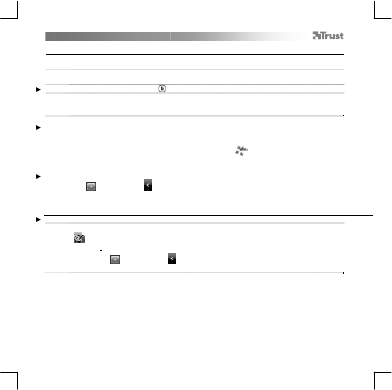
Slimline Widescreen Tablet – User’s Manual
5
Navigate (Navigate)
14
Clicking:
Y
ou can use the pen to click, by simply tapping the tablet’s surface.
15
Double clicking:
Y
ou can use the pen to double-click, by simply tapping the tablet’s surface twice.
Double click: By default, the upper button of the pen is configured to act as a double-click
16
Dragging:
T
o drag and drop an object, you need to select it (touch the tablet’s surface), move it (move the pen
across the tablet’s surface), and release it (lift the pen from the surface).
Pen Flicks:
Pen Flicks are a feature of Windows Vista and Windows 7/8 that associates the movement of your pen with actions. For
example, performing a pen flick downward produces the same result as pressing the PAGE UP key on your keyboard.
To activate and start using Pen Flicks, double click the Pen Flicks icon ( ) in your System Tray (next to your computer’s
clock) and follow the animated tutorial to learn how to use Pen Flicks.
If the Pen Flicks icon is not visible, click the “Show hidden icons” button first.
(Windows 7/8:
/ Windows Vista: )
Advanced configuration (Advanced configuration)
The illustrations for the following instructions are located at the end of this manual
17
Click on the Trust icon in your Windows system tray to open the tablet configuration utility.
( next to your computer’s clock)
If the Trust icon is not visible, click the “Show hidden icons” button first.
(Windows 7/8: / Windows Vista: )
With the driver installed, the Trust tray utility will load automatically when you connect the tablet to your computer.
Tablet properties
This utility consists in 2 tabs (Pen, Mapping)
In each tab, the “Default” button allows you to restore the default settings, and the “About” button displays information
about the tablet and its driver.
The “Option” button allows to save (Export) and load (Import) settings, and to assure compatibility with applications that
do not support 2048 pen pressure levels (the compatibility mode is enabled by default).
Preuzmite priručnik na hrvatskom jeziku (PDF, 2.88 MB)
(Čuvajte okoliš i ovaj priručnik ispišite samo ako je nužno)

Loading…

Ocjena

Ostavite ocjenu proizvoda Trust Slimline Tablet s olovkom i recite nam što mislite o njemu. Želite podijeliti svoje iskustvo s proizvodom ili postaviti pitanje? Ostavite komentar na dnu stranice.
Jeste li zadovoljni s Trust Slimline Tablet s olovkom?
Da Ne
100%
0%
1 glas

Pridružite se razgovoru o ovom proizvodu

Ovdje možete podijeliti što mislite o Trust Slimline Tablet s olovkom. Ako imate pitanja, prvo pažljivo pročitajte priručnik. Zahtjev za priručnik možete izvršiti putem našeg obrasca za kontakt.

Više o ovom priručniku

Razumijemo da je lijepo imati papirnati priručnik za svoj Trust Slimline Tablet s olovkom. Uvijek možete preuzeti priručnik s naše web stranice i sami ga ispisati. Ako želite imati originalni priručnik, preporučujemo da kontaktirate Trust. Oni bi mogli osigurati originalni priručnik. Tražite li priručnik za svoj Trust Slimline Tablet s olovkom na drugom jeziku? Odaberite željeni jezik na našoj početnoj stranici i potražite broj modela da vidite imamo li ga na raspolaganju.

Tehnički podaci

Marka Trust
Model Slimline
Kategorija Tableti s olovkom
Vrsta datoteke PDF
Veličina datoteke 2.88 MB

Svi priručnici za Trust Tableti s olovkom
Više priručnika za Tableti s olovkom
Priručnik Trust Slimline Tablet s olovkom

Povezani proizvodi

Povezane kategorije

×
Download